> For clean Markdown of any page, append .md to the page URL.
> For a complete documentation index, see https://beta-docs.payabli.com/llms.txt.
> For AI client integration (Claude Code, Cursor, etc.), connect to the MCP server at https://beta-docs.payabli.com/_mcp/server.
# VirtualTerminal UI
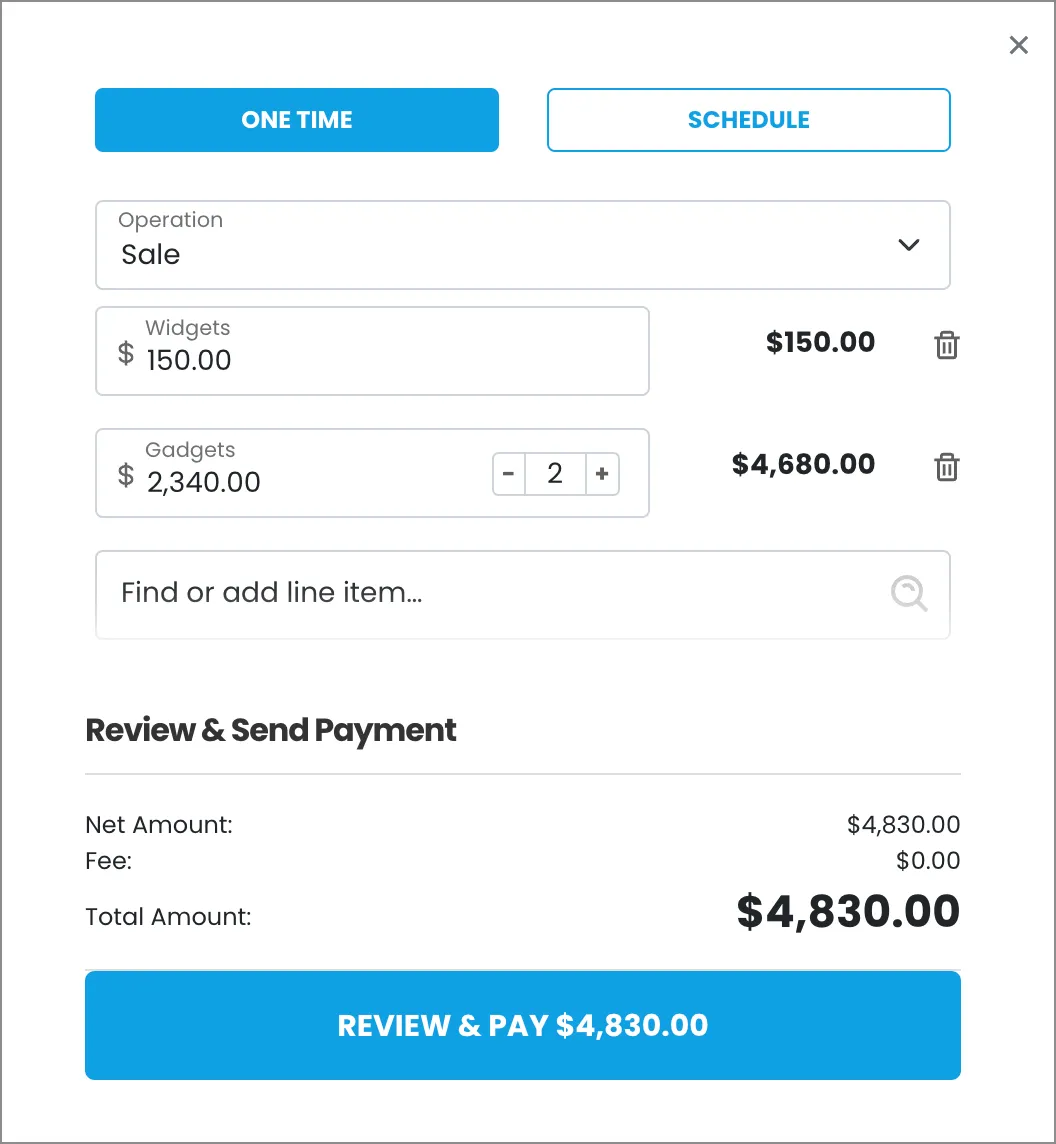
The VirtualTerminal UI component lets you embed a payment terminal inside your website or application.
## Usage
This component lets you add a robust virtual terminal tool to your pages or apps.
> **Info**
>
> See [Library URLs](/developer-guides/embedded-components-overview#library-urls) for important information about embedded components library URLs.
### Step 1: Include the Payabli component
Add the script to the `` element of your HTML.
**`Sandbox`**
```html Sandbox
```
> **Note**
>
> You need to include `` in the `` element of your HTML to prevent problems with special characters such as 'á' or 'ñ'.
### Step 2: Define the component container
Add the container to your HTML. This `
` tag is where the page renders the component. The ID is the identifier for `rootContainer` in your component configuration.
**`Sandbox`**
```html Sandbox
```
### Step 3: Configure the component
Define the component configuration in a script block immediately after `component.js` and create an instance of the component. See the [Configuration](#configuration-reference) section for a full reference of options.
#### Expand for full configuration example
**`Full configuration example`**
```html Full configuration example
```
### Response examples
In the response, the `referenceId` is the transaction ID you can use for other operations.
**`Payment success response`**
```json Payment success response
// Response is the same for ACH and card.
response.responseText:
"Success"
response.responseData:
{"authCode":"123456","referenceId":"187-c5892026d9f345ffa63bf909d574fe92","resultCode":1,"resultText":"Approved","avsResponseText":"","cvvResponseText":"","customerId":1636}
```
**`Credit card payment decline response`**
```json Credit card payment decline response
response.responseText:
"Declined"
response.responseData:
{"authCode":null,"referenceId":"187-d2a29970fa604edba5a6dbec67ace3ae","resultCode":2,"resultText":"200: Transaction was declined by processor.. DECLINE","avsResponseText":"","cvvResponseText":"CVV2/CVC2 no match","customerId":1636}
```
**`ACH payment decline`**
```json ACH payment decline
response.responseText:
"Declined"
response.responseData:
{"authCode":null,"referenceId":"187-b4cf271c7e24493aa799cabbccbd534d","resultCode":2,"resultText":"200: Transaction was declined by processor.. FAILED","avsResponseText":"","cvvResponseText":"","customerId":1636}
```
## Configuration reference
These are the configuration parameters available for the VirtualTerminal component.
> **Note**
>
> The component accepts only the data below. If you need to pass more data than what's supported, consider using the [temporary token flow](/developer-guides/tokenization-temporary-flow).
**`type`** `string` — required
This value determines the type of embedded component to render.\
Accepted values are: `methodEmbedded`, `methodLightbox`, `vterminal`, or `expressCheckout`.\
For the VirtualTerminal UI, this value is `vterminal`.
See the [Embedded Components Overview](/developer-guides/embedded-components-overview) for more information on other component types.
---
**`rootContainer`** `string` — required
Container ID used for the component.
---
**`defaultOpen`** `string`
Sets the default payment method that's shown. Accepted values are: `card` or `ach`.
---
**`buttonLabelInModal`** `string`
Text label for the action button.
---
**`hideComponent`** `boolean` — default: false
When true the component is hidden when it's instanced.
---
**`token`** `string` — required
API token for authentication.
---
**`customCssUrl`** `string`
Complete URL of a custom CSS stylesheet to use with the component.
---
**`recurringPayment`** `boolean`
When `true`, enables the recurring payment option in terminal.
---
**`oneTimePayment`** `boolean`
When `true`, enables the one-time payment option in terminal.
---
**`lineItems`** `array of objects`
`lineItem` objects with data related to the line items for the transaction. See [lineItem object model](/api-reference/schemas/lineitem) for a full reference.
---
**`card`** `object` — required
`cardService` object used to configure accepted card types.
#### properties
**`enabled`** `boolean`
Enable/disable card option.
---
**`amex`** `boolean`
Enable/disable acceptance of American Express cards.
---
**`discover`** `boolean`
Enable/disable acceptance of Discover cards.
---
**`visa`** `boolean`
Enable/disable acceptance of Visa cards.
---
**`mastercard`** `boolean`
Enable/disable acceptance of MasterCard cards.
---
**`diners`** `boolean`
Enable/disable acceptance of Diner's Club cards.
---
**`jcb`** `boolean`
Enable/disable acceptance of JCB cards.
---
**`inputs`** `object`
Card input fields descriptors. This object applies only to the EmbeddedMethod UI component.
#### properties
**`cardHolderName`** `object`
Optional, but *strongly recommended*. Descriptor object for input field.
---
**`cardNumber`** `object` — required
Descriptor object for input field.
---
**`cardExpirationDate`** `object` — required
Descriptor object for input field.
---
**`cardCvv`** `object` — required
Descriptor object for input field.
---
**`cardZipcode`** `object`
Optional, but *strongly recommended*. Descriptor object for input field.
---
---
---
**`ach`** `object` — required
`achService` object used to configure accepted ACH types.
#### properties
**`enabled`** `boolean`
Enable/disable ACH option.
---
**`checking`** `boolean`
Enable/disable acceptance of Checking account.
---
**`savings`** `boolean`
Enable/disable acceptance of Savings account.
---
**`inputs`** `object`
ACH input field descriptors. This only applies to the EmbeddedMethod UI component.
#### properties
**`achAccountHolderName`** `object` — required
Required. Descriptor object for input field.
---
**`achAccountType`** `object` — required
Required. Descriptor object for input field.
---
**`achRouting`** `object` — required
Required. Descriptor object for input field. Use the
`confirm` input descriptor to add matching validation to this field. See [Style Individual Fields](/developer-guides/embedded-components-overview#style-individual-fields) for more.
---
**`achAccount`** `object` — required
Required. Descriptor object for input field. Use the
`confirm` input descriptor to add matching validation to this field. See [Style Individual Fields](/developer-guides/embedded-components-overview#style-individual-fields) for more.
---
---
---
**`paymentMethod`** `object` — required
`paymentMethod` object with data related to the payment method. **Required when saving a payment method or executing a payment**. Can be passed to the component via payabliExec method. See [paymentMethod Object](/api-reference/schemas/paymentmethod) for a full reference.
---
**`customerData`** `object` — required
Customer Object with data related to customer. Can be passed to the component via payabliExec method. **Required when saving a payment method**. Which fields are required depends on whether the paypoint has custom identifiers. If you aren't using custom identifiers, then you must include at least one of these values: `firstname` and `lastname`, `email`, or `customerId`. See [customerData (payorData) Object](/api-reference/schemas/payordata) for a full reference.
---
**`paymentDetails`** `object` — required
`paymentDetails` object with data related to the payment. **Required when running a payment**. Can be passed to the component via payabliExec method. See [paymentDetails Object]() for a full reference.
---
**`fallbackAuth`** `boolean | null` — default: false
When `true`, if tokenization fails, Payabli will attempt an authorization transaction to request a permanent token for the card. If the authorization is successful, the card will be tokenized and the authorization will be voided automatically.
---
**`fallbackAuthAmount`** `number | null` — default: 1.00
The amount for the `fallbackAuth` transaction. Defaults to one dollar.
---
**`functionCallBackSuccess`** `function`
The callback function called when the component executes successfully.
---
**`functionCallBackError`** `function`
The callback function called when the component receives an error. See **functionCallBackError response** in the next section for a complete reference.
---
## Response object
The Response object received via callback Success function has the following structure:
**`responseText`** `string`
"Success" or "Declined"
---
**`responseData`** `object`
Container for response details.
#### properties
**`responseData.AuthCode`** `string`
Authorization code for payments.
---
**`responseData.ReferenceId`** `string`
Identifier for the transaction (for payments) or the stored payment method (for save payment method).
---
**`responseData.ResultCode`** `integer`
Result of operation. 1 is success, 2 is declined, and 3 is error.
---
**`responseData.ResultText`** `string`
Message related the result. If the operation was successful, it returns "Added"/"Approved". If there was an error, it returns error details.
---
**`responseData.CustomerId`** `integer`
ID for the customer owner of payment or saved payment method.
---
---